
Resizable Plugin Windows
Your exported VST3 / AU plugin can resize its own window while it’s running. A user on a 4K laptop can scale your GUI up to 150%, someone short on screen space can drop it to 75%, and the change takes effect immediately — no reloading the plugin.
The mechanism is a single scale factor. SynthEdit doesn’t re-flow your panel at a new size; it zooms it. The plugin window’s physical size is:
panel size (as designed) × UI scale × the system/host DPI factorSo at a UI scale of 1.5 a 600 × 400 panel becomes a 900 × 600 window, with every knob, font and background image redrawn crisply at the larger size. Because it’s a zoom, your layout can’t break — everything stays where you put it.
The Plugin UI Scale module
Section titled “The Plugin UI Scale module”The scale factor lives in a host control called Plugin/UIScale. You reach it with the Plugin UI Scale module (Module Browser → Special).
It has one visible pin, UI Scale, a float where 1.0 means 100%. Read it to find out how big the window currently is; write to it to resize the window.
That “write to it” is the part worth pausing on. UI Scale is drawn as an output pin, but like all GUI sub-control pins it carries values in both directions.
Adding a size menu
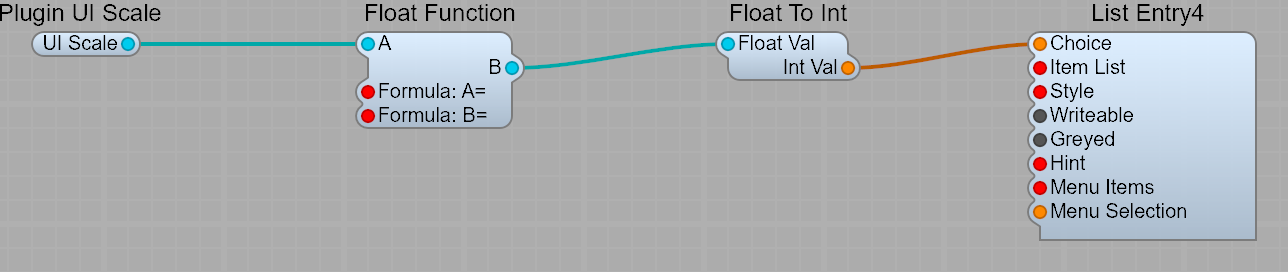
Section titled “Adding a size menu”The usual way to expose this is a small drop-down on your panel offering a few fixed sizes. Four modules:
-
Plugin UI Scale — the connection to the host.
-
Float Function (Sub-Controls → Conversion) — converts between the scale factor and a whole-number percentage. Set its two formulas:
Formula: B=→A*100Formula: A=→B/100
-
Float To Int (Sub-Controls → Conversion) — the menu’s
Choicepin is an integer, so the percentage needs rounding to a whole number. -
List Entry4 (Sub-Controls) — the drop-down itself. Set its Item List to:
50%=50,75%=75,100%=100,150%=150,200%=200
Wire UI Scale → A, B → Float Val, and Int Val → Choice. Drag the List Entry4 onto your panel wherever you want the control to appear.
Why the =50 part matters
Section titled “Why the =50 part matters”An Item List entry can carry an explicit value. Without it, Choice would report the item’s position in the list (0, 1, 2, 3, 4). Writing 100%=100 makes the menu report 100 when that item is picked — which is the number the Float Function is expecting.
This is also why the two formulas are inverses of each other. Values flow both ways along that chain:
- User picks “150%” →
Choice= 150 → back through Float To Int → Float Function appliesFormula: A=(150/100=1.5) →UI Scale= 1.5 → the window grows. - Window is at 1.5 →
UI Scale= 1.5 → Float Function appliesFormula: B=(1.5*100=150) → the menu displays “150%”.
Get one formula wrong and the menu will still resize the window but display the wrong figure afterwards (or vice versa).
Other ways to drive it
Section titled “Other ways to drive it”Nothing about this is specific to a drop-down. Anything that can produce a float will do — a Slider for continuous zoom, a pair of +/− buttons feeding a counter, or a right-click menu on your panel background using the List Entry4’s Menu Items / Menu Selection pins. The Plugin UI Scale module only cares about the number arriving at UI Scale.
Things to know
Section titled “Things to know”The host has to co-operate. Resizing works by asking the host to resize the plugin’s view (VST3’s IPlugFrame::resizeView). Well-behaved hosts honour it; a few older or unusual ones ignore the request, in which case the GUI redraws at the new scale inside a window that never changed size. Worth testing in the DAWs you care about.
It stacks with system DPI. The scale factor is applied on top of whatever DPI scaling the OS and host are already doing. On a display already running at 200%, a UI scale of 1.5 gives you a 3× physical window. Users generally want this — it’s how they fine-tune on top of their system setting — but don’t design assuming 1.0 means “actual pixels”.
It isn’t saved with presets. Plugin/UIScale is a private host control, deliberately kept out of the patch data — it’s a per-user display preference, not part of your sound. It’s also hidden from the host’s automation list. Every fresh instance of the plugin opens at 100%.
Keep the range sensible. Offer a handful of steps between roughly 50% and 200%. Very small scales make text unreadable, and very large ones can produce a window bigger than the user’s screen with no way to get back to the menu.
Resizing inside the editor
Section titled “Resizing inside the editor”The scale factor is a plugin feature — it’s about the window the DAW hosts. It’s unrelated to resizing modules while you work:
- Individual modules like Scope, Freq Analyser and List Entry have a sizing handle at the bottom-right — drag it to make the control bigger on the panel.
- The plugin’s base size is simply the size of your master container’s panel. Set that the way you want the plugin to open at 100%.
See also
Section titled “See also”- Panel Design — laying out the GUI this scales
- Creating VST Plugins — exporting the plugin
- Plugin UI Scale — module reference