
Creating VST Plugins
One of SynthEdit’s most powerful features is the ability to export your projects as standalone VST3 plugins. These plugins work in any DAW that supports the VST3 format.
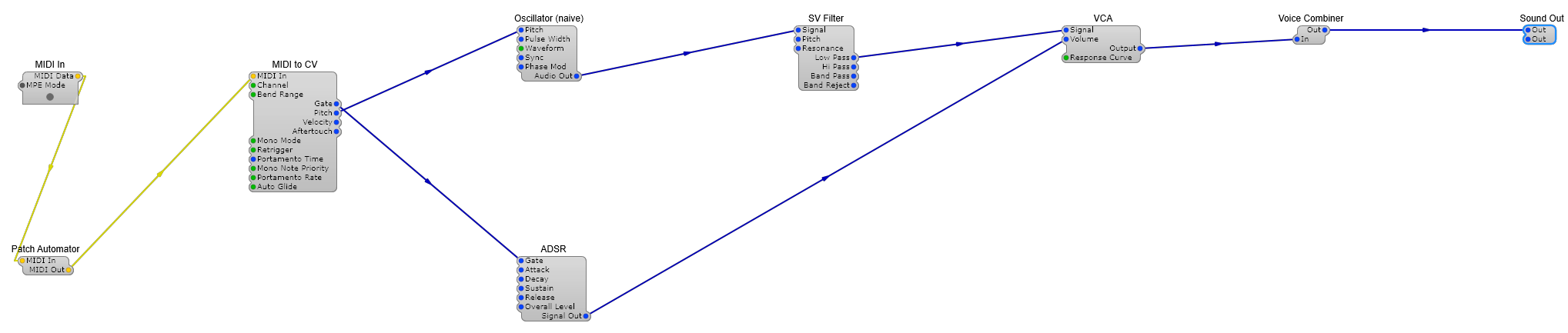
A patch like this — MIDI In → Patch Automator → voice modules → Voice Combiner → Sound Out — is the typical shape of a VST instrument before export. The Patch Automator is what exposes your panel controls to the host DAW as automatable parameters.
Designing the GUI
Section titled “Designing the GUI”Before exporting, you’ll want to create a user interface for your plugin:
- Switch to the Panel view
- Add controls — knobs, sliders, switches, labels
- Connect controls to module parameters
- Customize the appearance with colors, images, and layout
Exporting as VST3
Section titled “Exporting as VST3”- Go to File > Export VST Plugin
- Choose a location to save the plugin
- Set the plugin name, manufacturer, and unique ID
- Click Export
SynthEdit generates a .vst3 file that you can install in your DAW’s plugin folder.
Including Audio, MIDI and SoundFont Files
Section titled “Including Audio, MIDI and SoundFont Files”If your project uses external files — a sample loaded by a Wave Player, a MIDI file driving a MIDI Player, a SoundFont — those files need to ship inside the exported plugin too. SynthEdit looks for them in a folder next to your project named <project-name>.resources.
For example, if your project is MySynth.synthedit, create a folder called MySynth.resources alongside it and drop your .wav, .mid, .sf2, etc. files in there. When you pick one of those files in a module’s File Name pin, SynthEdit will find it in .resources/ first, then fall back to your global Audio / MIDI / SoundFont folders set in Preferences.
On export, the entire .resources folder is copied verbatim into the exported VST3 / AU bundle’s Resources folder. The plugin finds the files at runtime by the same short filename, so the patch just works in any DAW on any machine.
Why a dedicated folder?
Section titled “Why a dedicated folder?”Skin images and font assets get exported automatically — SynthEdit displays your GUI during export, which forces every panel control to register the images it needs. Audio, MIDI and SoundFont files can’t be discovered the same way (the audio engine doesn’t necessarily run during export), so putting them in .resources is the reliable way to make sure they travel with the plugin.
Testing Your Plugin
Section titled “Testing Your Plugin”- Copy the
.vst3file to your system’s VST3 folder - Rescan plugins in your DAW
- Load the plugin on a track
- Test all controls and audio processing
Distribution
Section titled “Distribution”You own full rights to the plugins you create with the licensed version of SynthEdit. You can:
- Distribute plugins for free
- Sell them commercially
- Include them in commercial products
No royalties or additional licensing fees apply.
Automate your releases — rather than exporting and packaging by hand each time, you can have GitHub Actions export the plugin and build Windows + macOS installers automatically whenever you push a version tag. See Distributing plugins with GitHub Actions.
Tips for Professional Plugins
Section titled “Tips for Professional Plugins”- Test in multiple DAWs (Cubase, Ableton, FL Studio, Reaper)
- Provide sensible default preset values
- Include a user manual or preset library
- Test with different sample rates (44.1kHz, 48kHz, 96kHz)