
Panel Design
The Panel View is where you design the user interface of your synthesizer or plugin. It shows only the controls (sliders, knobs, buttons, menus) without the underlying patch cords and processing modules.
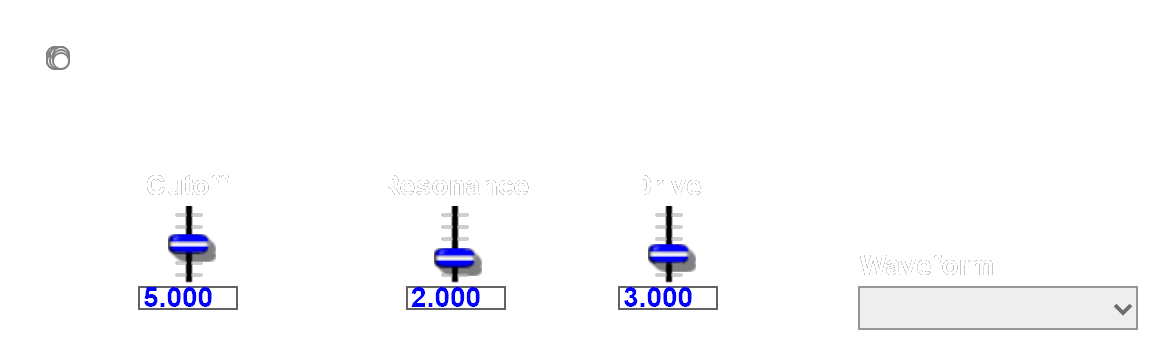
The Panel View is what your end-user actually sees — only the control modules (sliders, knobs, drop-downs, buttons) are visible here, laid out the way you want them. Everything else (oscillators, filters, MIDI plumbing) lives behind the scenes in Structure View.
Accessing Panel View
Section titled “Accessing Panel View”Right-click a container and select Panel Edit, or use the toolbar button to switch between Structure View and Panel View.
Arranging Controls
Section titled “Arranging Controls”- Drag controls to position them on the panel
- Arrow keys nudge selected controls by 1 pixel for precise positioning
- Snap to Grid (Edit > Snap to Grid) helps align controls evenly
- Select multiple controls and drag them as a group
Panel Groups
Section titled “Panel Groups”Use the Panel Group module to add a visual border around related controls. This helps organize your interface into logical sections — for example, grouping all oscillator controls together, all filter controls together, etc. Panel Groups are only available in Panel View.
Complex Multi-Section Panels
Section titled “Complex Multi-Section Panels”For synthesizers with multiple sections (oscillators, filters, envelopes, effects), use containers with the Controls on Parent property:
- Place each section’s modules in its own container
- Set the container’s Controls on Parent property to display its controls on the parent panel
- Arrange the controls on the parent’s Panel View
This approach keeps your patch organized while presenting a unified control panel to the user.
Sub Panels
Section titled “Sub Panels”The Sub Panel module displays a window into a lower-level container’s panel. This is useful for:
- Showing nested SynthEdit controls
- Displaying VST plugin interfaces within your patch
For SynthEdit’s own panels, the Controls on Parent approach is generally preferred over Sub Panels.
Skins control the visual appearance of your panel — the graphics used for knobs, sliders, backgrounds, and other controls.
Selecting a Skin
Section titled “Selecting a Skin”Each panel can use a different skin:
- Right-click the panel background
- Select a skin from the Skin submenu
Installing New Skins
Section titled “Installing New Skins”- Create a new folder in the SynthEdit
skinsdirectory - Copy the skin’s image files into the folder
- Restart SynthEdit
The folder name becomes the skin name. Any missing images automatically fall back to the default skin.
Locking the Panel
Section titled “Locking the Panel”To prevent accidental changes to your panel layout, use Edit > Lock Module or the toolbar lock button. Locked panels prevent control repositioning while still allowing the controls to function normally during playback.
Capturing Screenshots
Section titled “Capturing Screenshots”To save an image of your panel: Edit > Grab Screenshot, then choose a save location. The active view is captured as a PNG file.