
Working with Modules
Modules are the building blocks of every SynthEdit project. Each module performs a specific function — generating sound, processing audio, handling MIDI, or providing user interface controls.
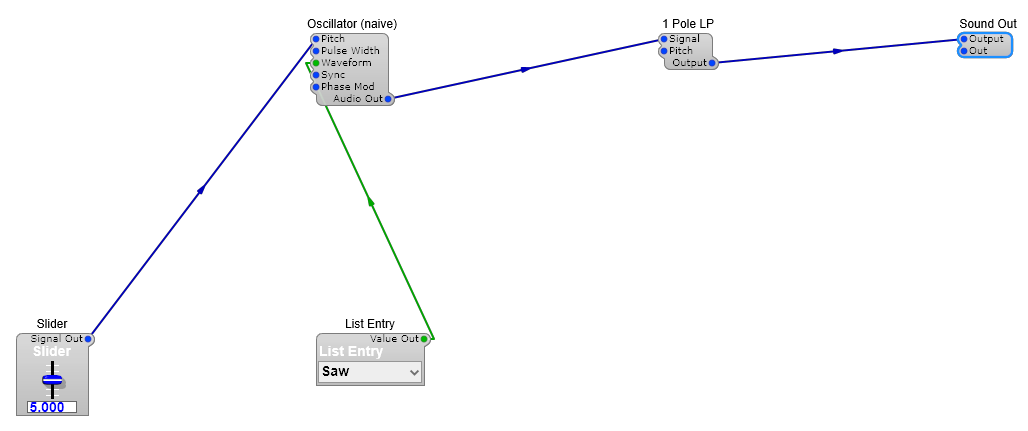
Each module shows its pins as coloured labels — inputs on the left, outputs on the right. The colour of the cable matches the signal type: blue is audio, green is a list (enum) value, yellow is MIDI.
Inserting Modules
Section titled “Inserting Modules”Right-click on an empty area of the canvas and select Insert Module to open the module browser. You can:
- Browse by category (Oscillators, Filters, Effects, etc.)
- Search by name
- View a description of what each module does
Connecting Modules
Section titled “Connecting Modules”To connect two modules, click on an output pin (right side) and drag to an input pin (left side) on another module. A cable appears showing the connection.
Pin types:
- Audio (thick lines) — carry audio signals
- Control (thin lines) — carry control values (pitch, gate, etc.)
- MIDI — carry MIDI data
You can only connect pins of compatible types.
Module Properties
Section titled “Module Properties”Click on a module to select it, then view its properties in the properties panel. Common properties include:
- Name — rename the module for clarity
- Default values — set initial values for unconnected inputs
- Polyphony — configure voice count for polyphonic modules
Organizing Your Canvas
Section titled “Organizing Your Canvas”- Move modules by dragging them
- Select multiple by drawing a selection rectangle
- Group modules into containers for organization
- Add notes to document your patch
Next Steps
Section titled “Next Steps”- Learn about Creating VST Plugins to export your work