
Path Editor
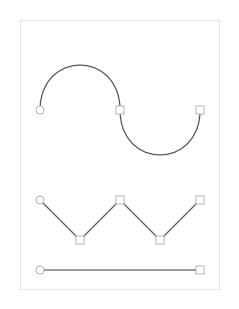
The Path Editor turns the module’s panel into a small vector-graphics drawing surface. You click to create anchor points, drag them to reshape the path, and convert straight edges into curves. The whole drawing is stored as an SVG-style path string on the Path pin, so it persists with the patch and can be read by any module that consumes a text input.
The module supports multiple subpaths (so a single drawing can have several disconnected shapes), straight line segments, and cubic Bezier curves with editable handles.
Editing
Section titled “Editing”| Action | Result |
|---|---|
| Left-click on empty space | Append a new line node to the current subpath |
| Shift + left-click on empty space | Start a new subpath at the click point |
| Left-click on an anchor | Select it (drag to move) |
| Left-click + drag a control handle | Reshape the adjacent cubic curve |
| Double-click a segment | Insert a new node mid-segment (the curve is split exactly so the shape doesn’t change) |
| Alt + left-click on an anchor | Toggle the incoming segment between Line and Cubic |
| Right-click on the canvas | Open a context menu: Delete Node, Convert to Line/Cubic, Open/Close Subpath, Clear All |
| Delete or Backspace | Remove the selected anchor |
| Escape | Clear the selection |
Anchors are drawn as small white squares; the first anchor of each subpath (the SVG M move-to point) is drawn as a circle so you can tell subpaths apart. When an anchor is selected, its cubic control handles appear as small circles connected to the anchor by thin lines.
Path Format
Section titled “Path Format”The Path pin holds an SVG-subset d-string with absolute coordinates. The editor reads and writes the following commands:
| Command | Meaning |
|---|---|
M x y | Move to (start a new subpath) |
L x y | Line to |
C x1 y1 x2 y2 x y | Cubic Bezier curve to |
Z | Close the current subpath (line back to its M point) |
The parser also accepts m, l, H, h, V, v, c, z on input (relative coordinates and horizontal/vertical lines) but the editor always writes back the canonical absolute form above.
For example, a simple triangle is:
M 20 20 L 80 20 L 50 80 ZBecause Path is a plain text pin, you can also pipe an SVG path in from another module — for instance from a Text Entry — or read the current drawing out of the Path pin to drive something else that takes a path string.
Storing & Sharing the Path (Model-View Pattern)
Section titled “Storing & Sharing the Path (Model-View Pattern)”The Path Editor is one view of a path. To persist the drawing with your patch and share it with other views (such as a Path Render on the front panel of your VST), keep the path string in a separate PatchMemory Text2 module that acts as the model:
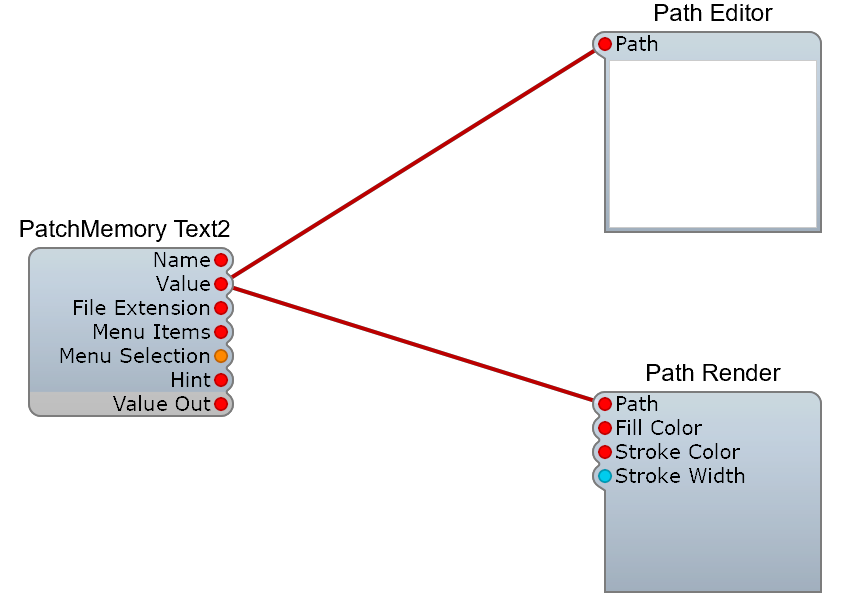
The PatchMemory module holds the path string as patch state. Its Value output is wired into the Path pin of every module that needs to see or edit the drawing. When the user edits in the Path Editor the new path is written back to the PatchMemory, which broadcasts it to every other view. Loading a preset, undo/redo, and inter-instance state restoration all just work because there is exactly one place where the string lives.
This pattern lets you, for example, put a Path Editor inside a container that opens on demand and a Path Render on the visible panel — the user edits in one place and sees the result rendered everywhere.
| Pin | Type | Description |
|---|---|---|
| Path | Text | The SVG d-string. Read this pin to use the current drawing elsewhere, or write to it (e.g. from a PatchMemory) to set the initial shape |